



Datawrapper alternatives suit different jobs: Flourish for interactive stories, Infogram for designed reports, everviz for publishing across formats, Meiku Charts for spec-driven web animation, RAWGraphs for editable SVG, and Google Sheets for spreadsheet work. Keep Datawrapper when its maps, tables or connected publishing already fit. Choose by destination and update responsibility.
Which Datawrapper alternatives fit your publishing job?
Choose the output before choosing the editor. A chart for a web article needs a different handoff from an SVG a designer will finish or a graph whose formulas belong in a spreadsheet. An interactive embed also needs someone to maintain the data it displays.
We’re the team behind Meiku Charts. We checked public product pages and documentation on October 15, 2026. In our maker, we entered the invented values below, changed Email from 55 to 70 and confirmed that the chart showed the corrected data without an error. Our descriptions of paid features come from documentation.
The matrix gives a starting point. Read its tradeoff column before opening a tool. If your requirement is a map, an approval process or a full business dashboard, keep that requirement in the decision; an animated bar chart doesn’t replace it.
| Chart publishing tool | Choose it for | Tradeoff to check |
|---|---|---|
| Datawrapper | Publishing charts, maps and tables | Check the source connection mode and paid export requirements |
| Meiku Charts | A spec-driven animated chart or table in your page | Your page supplies fresh data; no map workflow; PNG/SVG are static |
| Flourish | Template-based stories and presentation sequences | Free publication is public; live data and video depend on plan |
| Infogram | Designed reports, infographics and charts | Live data and downloads require paid scope; check branding separately |
| everviz | Publishing charts across web, print and video | Confirm the export format and team scope in your chosen plan |
| RAWGraphs | An SVG you will finish in design software | Maintain the source and re-export when values change |
| Google Sheets | A chart maintained beside spreadsheet cells and formulas | Check the sharing and publishing method for the final destination |
When should you keep Datawrapper?
Datawrapper Free already publishes interactive charts, maps and tables, with PNG downloads and web embeds. A paid subscription isn’t required just to put an interactive chart in an article. Attribution remains on the free output. Its pricing FAQ also says unpublished visualizations are private by default.
Keep Datawrapper when those publishing tools solve your job and your team knows how to maintain the result. A change of editor introduces work: rebuild the chart, check its labels, replace the embed and confirm that the new source will be maintained. A different animation style alone might not justify that work.
Datawrapper’s current Pro plan adds PDF/SVG downloads and attribution removal. Its Business plan adds features including waterfall and dual-axis charts. Older comparisons that describe only a free tier and a large custom team plan miss the current individual paid options. The pricing section below preserves the billing-period distinction.
Automatic refresh is another reason to inspect the existing setup. Datawrapper offers different connection modes, with different maintenance work:
- Connect Google Sheets imports the source for editing; republish to update the published visualization.
- Link external dataset > Use Datawrapper server can retrieve a CSV or Google Sheet without republishing each change. Datawrapper documents updates every minute during the first day, then hourly for the next 29 days. Republish after the 30-day window to restart automatic updates.
- Serve data file directly lets readers load your hosted CSV. Your server must support HTTPS, cross-origin access and the expected traffic. The Google Sheets guide says this direct-serving option doesn’t work with a Google Sheet.
Keep Datawrapper for maps, familiar editorial tables or a connected publishing workflow that meets your requirements. Compare the actual maintenance task before rebuilding it elsewhere.
Which alternative should you use?
Meiku Charts: when the page should control the chart
We built Meiku Charts. It renders a chart or table from a spec: a structured description of its type, labels, values and appearance. A page can supply a new spec when its data changes. The chart then updates and animates between states. That’s useful when you control the website and want the visualization to respond to the data your page supplies.
Use the chart maker to prepare the data and copy an embed, or open a live example from this article in the maker. You can edit its rows without writing code. The table maker covers sortable comparison rows and longer notes. Makers don’t require an account, and chart data is processed in the browser. An editing link carries its data in the URL fragment, which anyone with the link can read. An inline embed includes the data in the page’s HTML.
Our current makers cover charts and tables, without a map workflow. PNG and SVG exports are static images, so they don’t preserve an animated sequence. The tradeoff is update ownership. Copying an embed doesn’t create a subscription to your spreadsheet. Automatic source updates need website code that obtains fresh values and supplies the new spec. Free exports and embeds also retain branding. See the embed contract before adding a live chart to a page maintained by someone else.
Flourish: when the story needs a sequence of views
Flourish is the shortlist choice when you want template-based interactive storytelling and presentation sequences. Its Free plan includes visualizations and stories, public publishing and embedding with attribution, and privacy for unpublished projects and data.
Check the delivery path before building the whole story. The current pricing page puts image and SVG export in Presenter, available through Canva Business or Enterprise. Publisher adds website attribution removal, scrollytelling, live data updates from Google Sheets or CSV, and HTML export for self-hosting. These features belong to different plans; a free public embed doesn’t imply free access to every export format.
If you need a presentation story and a continually updated web chart, check which plan supports each. We didn’t test a paid Flourish account, and its current Publisher page asks readers to contact the team rather than displaying a flat price.
Infogram: when the chart belongs in a designed report
Infogram is worth comparing when the deliverable combines charts with a report or infographic layout. Its current Basic plan lists online publishing, interactive chart types, maps and object animations. These features make it a closer publishing candidate than a full business-intelligence platform when the main job is a designed page.
Plan eligibility matters. The pricing page puts image/video downloads, privacy controls and data connections with live data in Pro. Replacing Infogram’s logo with your own starts at Business. Don’t treat a paid download plan as automatic permission to remove every credit. Its FAQ also directs business and professional use to paid plans.
We checked the public feature list, not a paid workspace or a connected spreadsheet. Before adopting it, test the intended report layout, the refresh connection and the exact export you will distribute.
everviz: when one chart has several publishing destinations
everviz is another hosted publishing candidate. Its pricing page describes chart, map and table types, web embeds, Google Sheet or external-source imports, and downloads including SVG, PDF, GIF and MP4. That makes it worth a trial when the same chart needs a web version and a file for another channel.
Check the package rather than assuming every listed capability has the same eligibility. The page distinguishes its standard offer from a tailored quote with expanded publishing and download options. We didn’t test those exports or a paid team workspace. Ask for the formats, data connection and usage scope your publication needs, then reproduce a small correction before migrating.
RAWGraphs: when a designer needs the finished SVG
RAWGraphs is a free, open-source option for turning tabular data into a graphic you can finish in design software. Its homepage says inserted data is processed by the browser. Its export tutorial lists SVG, PNG, JPG and the editable project format. Anyone who receives the resulting file can inspect it; local processing alone doesn’t protect a published report.
An SVG preserves separate graphic objects that a designer can edit. That’s useful when the handoff involves adjusting labels, type or layout for a report. Keep the source data and project as well as the finished file, so a later correction doesn’t begin with reverse-engineering the picture.
RAWGraphs exports files and projects; those outputs don’t establish a live connection to the original spreadsheet. If a value changes after you’ve finished the graphic, update the source and export again, then repeat any design edits the new version needs. Treat that revision work as part of the choice.
Keep the editable source alongside the file you distribute.
Google Sheets: when the spreadsheet is the working source
Stay with Google Sheets when the chart belongs beside spreadsheet cells and formulas. Google’s chart editor lets you change the data range, type and appearance. The person responsible for the sheet can maintain those choices in the same place as the values.
Our Google Sheets chart guide covers construction and common repairs. It’s a better starting point than moving a working spreadsheet solely to get a new visual style. For web publication, check the exact sharing or export method you intend to use and who is allowed to see the result.
Tableau, Power BI and Looker Studio belong in the decision when you need a broader reporting system; this comparison focuses on publishing a chart or designed report. If you already write chart code, assess libraries such as Chart.js or Highcharts alongside our spec-driven component. They involve implementation choices that a no-code editor handles for you.

Does live mean animated or automatically updated?
An animated chart changes its visual state; automatic refresh changes the data supplied to that chart. A fixed image preserves the state that was exported. These behaviors can appear in the same workflow, but none guarantees the others.
For example, your web page can receive revised values and assign them to a Meiku chart. The animation shows that change. Something still has to fetch or calculate the new values. Datawrapper’s external-data modes address retrieval instead. With its server handling the source, keep the documented 30-day restart in your maintenance plan.
| Output | What changes | Who maintains it |
|---|---|---|
| Chart supplied a new spec | Labels, values or chart form on the page | The website supplies the revised spec |
| Chart linked to an external data source | Values loaded under its connection rules | The source owner maintains data; the publisher maintains refresh/restart settings |
| Exported PNG or SVG | The file stays as exported | The publisher replaces the file after a correction |
A chart can animate correctly while still displaying yesterday's data.
Document how to update the chart for whoever inherits it: name the data source, who updates that source and how a correction reaches readers. Our animated chart guide covers motion in more detail.
Try it with your data
New on Meiku Charts
Any currency and your own units in every maker
Find any of 156 currencies by name or code, or put your own unit before or after the number. The Design panel is also shorter.
See what changed →Do you need an animated embed or a video file?
A chart that animates inside a web page and an MP4 for a social post need different delivery paths. Meiku’s PNG and SVG downloads preserve a single state. They don’t turn the transition shown in this article into a video, and this article doesn’t demonstrate a Meiku video-export workflow.
For a file-based animation, trial a product that explicitly lists the format you need. Infogram lists video downloads in Pro, everviz lists GIF and MP4 among downloads, and Flourish’s comparison table lists video export in Enterprise. Confirm the plan and test timing, labels, dimensions and the final file before building the full sequence. An interactive web story alone doesn’t establish video-export eligibility.
Can you reproduce the same change before switching?
Test Datawrapper alternatives with the same small dataset before rebuilding a published chart. We’re using invented signups: Web 80, Email 55 and Partners 35. Correct Email to 70 while leaving the other values alone. The correction tests how revised values reach the final output.
| Label | Signups |
|---|---|
| Web | 80 |
| 55 | |
| Partners | 35 |
Check the revised chart against the original rows. Email rises by 15; Web stays at 80 and Partners at 35. The two charts use the same labels and represent counts, not percentages. A changed title or an attractive theme won’t tell you whether a correction reached the published output.
| Label | Original | Corrected |
|---|---|---|
| Web | 80 | 80 |
| 55 | 70 | |
| Partners | 35 | 35 |

Open either example in the maker to inspect the rows. In the editable example below, try the same change yourself. If you’re also choosing a chart type, compare the bar chart example with the types of graphs guide.
Try it with your data
On a website with the Meiku element already loaded, this is the update itself:
const chart = document.querySelector('live-chart');
chart.spec = {
  type: 'bar',
  theme: 'editorial',
  title: 'Signups after correction',
  data: {
    labels: ['Web', 'Email', 'Partners'],
    series: [{ name: 'Signups', values: [80, 70, 35] }]
  }
};
This code supplies values directly. It doesn’t fetch a spreadsheet. Make the correction through your intended source, then reopen the page or file as a reader. Confirm Web 80, Email 70 and Partners 35 there. For a PNG or SVG handoff, export the corrected state and replace the old image.
What do the paid plans actually cost?
Compare Datawrapper alternatives using the billing period and licensing unit shown on the live pricing page. On October 15, 2026, Datawrapper Pro showed USD 25 per user/month with monthly billing and USD 21 per user/month with Annual selected, excluding VAT. Business showed USD 46 per user/month with monthly billing or USD 39 per user/month with Annual selected.
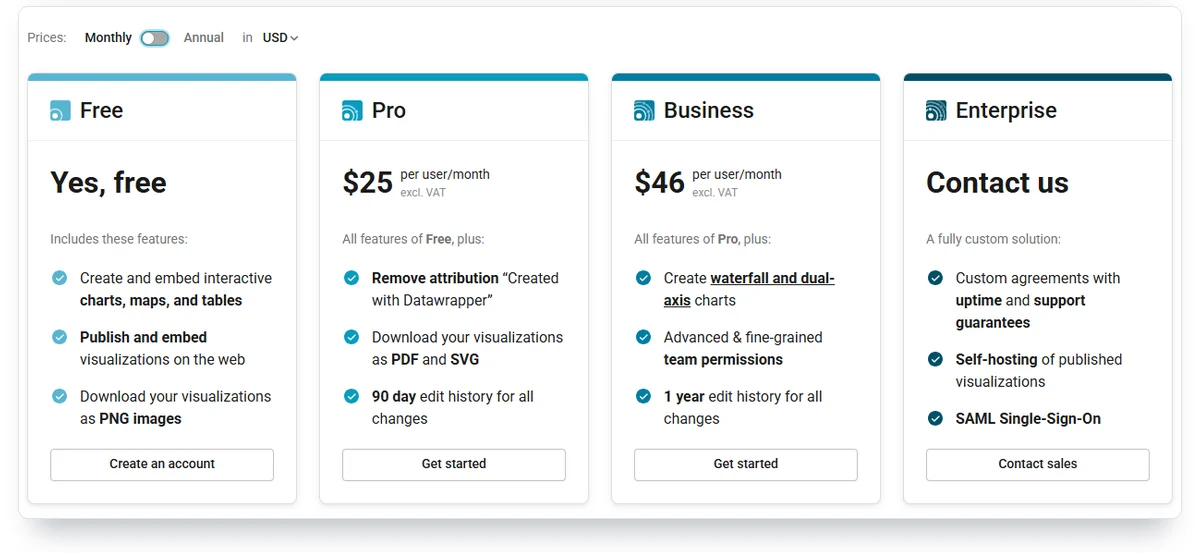
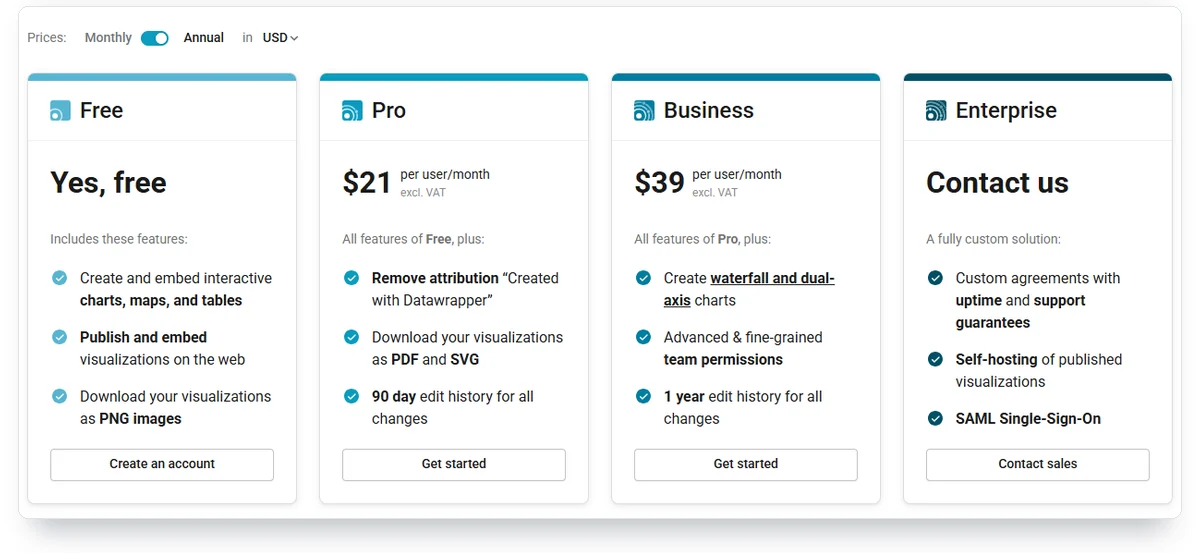
The annual selector displays a monthly equivalent. Don’t read that amount as a month-to-month subscription. A per-user plan also isn’t the same purchasing unit as a website allowance.
Meiku Charts Pro showed USD 19/month or USD 190/year, with clean image exports and your own credit line or no credit. Its website allowance covers one website, including its subdomains; Team covers up to 10. Check the current plans for tax treatment and what the subscription includes. Those prices alone don’t make the products equivalent.
Flourish currently lists Free, Presenter through eligible Canva plans, Publisher and Enterprise. Publisher asks readers to get in touch for pricing. RAWGraphs describes itself as free and open source; maintaining and distributing the exported graphic is still your job.
What should you check before replacing a published chart?
Keep the original publication available while you check the replacement. A useful trial follows the chart all the way to the place readers will see it.
- Rebuild the same labels, units and values, then make one controlled correction.
- Check the intended destination: web embed, presentation, report or editable design file.
- Identify who supplies fresh data and whether the output needs republishing or replacement.
- Review what readers can access. For a confidential client report, verify access restrictions at the destination before choosing an embed or file-sharing method.
- Check motion and keyboard use in the final page, including the experience with reduced motion enabled.
- Confirm the export format, attribution rules, billing period and paid scope you will actually need.
Keep a dated source and the editable project with the finished output. That makes the next correction a maintenance task someone can carry out, instead of a search for whoever made the chart.
Comments