



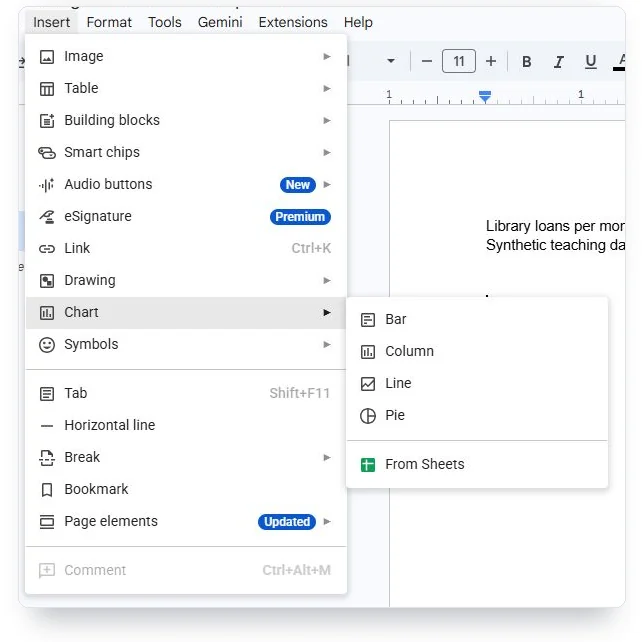
On a computer, choose Insert > Chart and select a chart type. Google Docs creates a new chart with a linked Google Sheets spreadsheet where you edit its data. Open the source to replace the sample values, then return to your document and update the chart.
How do you create a chart in Google Docs?
Edit the chart’s values and appearance in its source spreadsheet. The chart inside your report is the copy your reader sees.
- Put your cursor where the chart should appear. Open Insert > Chart and choose a type, such as Column.
- Select the chart, open Linked chart options at its upper-right corner and choose Open in Sheets. Some versions call this Open source.
- Replace the example labels and values in Sheets. Keep a header row to name the group of values, such as Loans.
- Double-click the chart in Sheets. In the Chart editor, use Setup to check the type and data range, and Customize to edit the title or colors.
- Return to Docs and select Update on the chart after changing its source.
Use these invented counts for a short library report. Paste the two columns into Sheets, starting at A1:
| Month | Loans |
|---|---|
| Jan | 80 |
| Feb | 95 |
| Mar | 120 |
Use A1:B4 as the chart’s data range. The chart’s data range is the set of spreadsheet cells supplying its labels and values, including headers. If you add April in row 5, extend the range to A1:B5. Cells outside the range won’t appear in the chart.
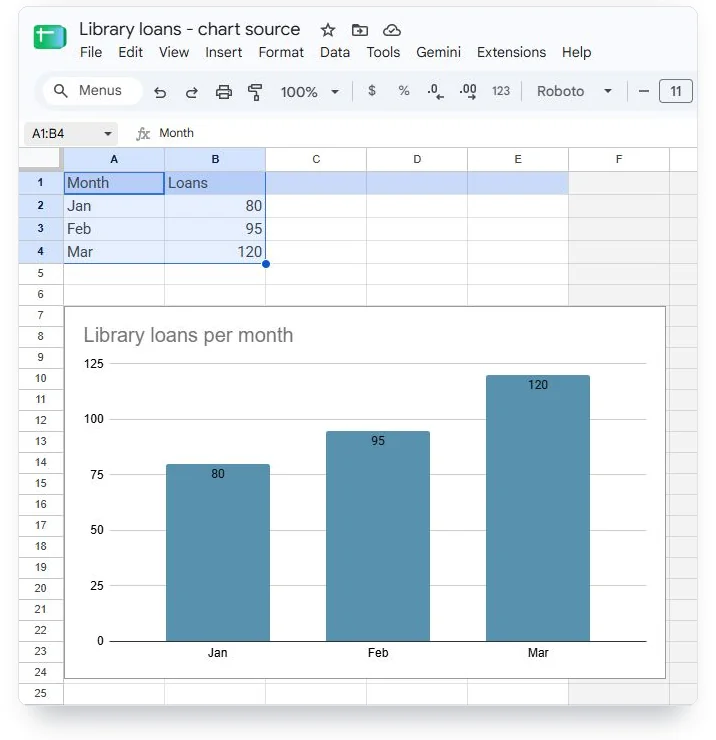
| Label | Loans |
|---|---|
| Jan | 80 |
| Feb | 95 |
| Mar | 120 |
Hover over a column to read its value, or open the chart in the maker to change the data. For help choosing between a bar, line or pie chart, use our guide to types of graphs. The bar and column examples explain when vertical bars suit the question.
How do you add a chart you already made in Sheets?
Import a chart from Sheets when the spreadsheet already holds the data you want in your report. In Docs, choose Insert > Chart > From Sheets, select the spreadsheet and choose the chart. Keep linking enabled if you want to update the displayed chart from that source later, then import it.
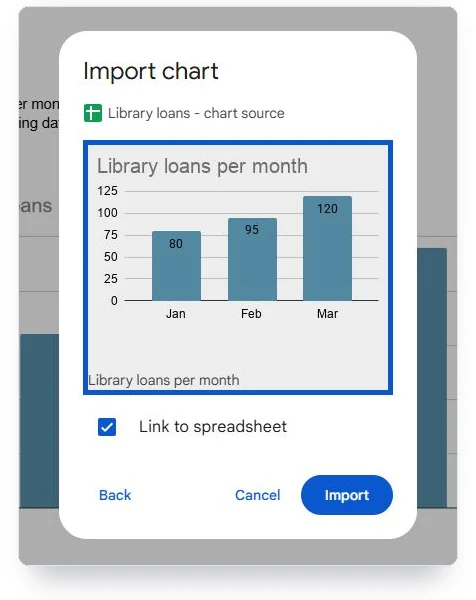
The import picker selects an existing chart. If your spreadsheet has data but no chart, select its cells and choose Insert > Chart in Sheets first. Our Google Sheets chart guide covers the editor in detail.
To chart a table from Docs, copy its values into Sheets, select that range and choose Insert > Chart there. Return to Docs and import the chart using the steps above. If you already inserted an unwanted sample chart, select it and delete it.
This also works for chart types absent from Docs’ new-chart menu. Build and style the chart in Sheets, then import it into your report. Make later chart edits in Sheets so the next refresh uses those changes.
How do you update a linked chart after the numbers change?
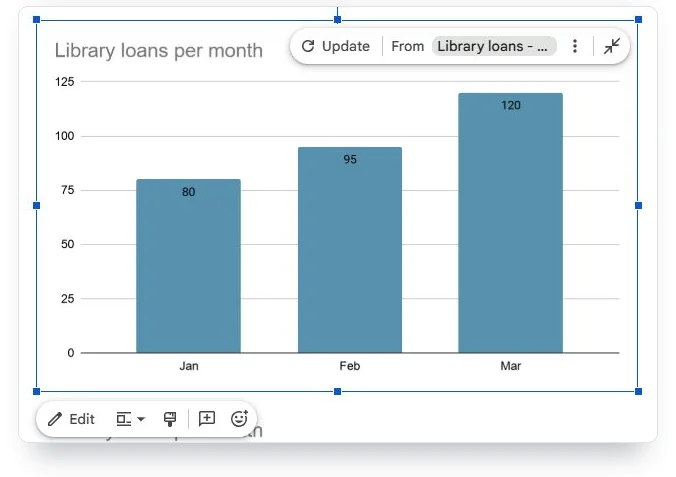
A linked chart in Google Docs needs a manual refresh after its source data changes in Sheets. Use Update on the selected chart, or open Tools > Linked objects and refresh all linked objects together. Google’s help says a missing update control can mean the object is already current or isn’t linked.
Suppose March’s loan count is corrected from 120 to 150. Change B4 in the example spreadsheet, or verify the value if a colleague already changed it. Check that its chart shows 150, then update the chart in Docs. Reread the sentence below it. If it still says “March reached 120 loans,” the report contradicts the corrected chart.
| Label | Before correction | After correction |
|---|---|---|
| Jan | 80 | 80 |
| Feb | 95 | 95 |
| Mar | 120 | 150 |
Check the changed value in the document before sending the report. Google’s linking help also warns that changes to the source chart can override edits to its copy in Docs.
Check the corrected number in the report your reader will see.

Should you keep the chart linked or use an image?
Keep the chart linked while the report needs future corrections from its spreadsheet. For a fixed version, disable linking when importing or use a PNG. An exported PNG preserves the chart’s displayed values and doesn’t follow later changes in its source spreadsheet. If the report should reflect a later correction, export a new image and replace the old one.
| Route | How later changes reach the report | Useful when |
|---|---|---|
| Linked Sheets chart | Edit the source, then refresh the object in Docs | The working report should follow corrections |
| Imported chart with linking disabled | Replace the unlinked copy when needed | The report should keep a chosen version |
| Uploaded PNG | Export a new image and replace the old one | You want a finished visual from another chart maker |
Google says document viewers can see a linked chart even without access to its source spreadsheet. Review the displayed values and labels before sharing; spreadsheet permissions don’t hide a chart already visible in the document.
Check the displayed chart for information the report’s audience shouldn’t receive. A reader who can see the chart still needs the appropriate spreadsheet permissions to open or edit the source. Unlinking later doesn’t remove the values already shown in the document.
Try it with your data
New on Meiku Charts
Any currency and your own units in every maker
Find any of 156 currencies by name or code, or put your own unit before or after the number. The Design panel is also shorter.
See what changed →Why does the chart look wrong or fail to update?
Start with the symptom. Check the spreadsheet for wrong values, the chart’s link state for a missing Update control and the document layout for poor placement.
| What you see | What to check | What to do |
|---|---|---|
| The report shows old values | The source chart and the document copy may differ | Check the source, then use the chart refresh control or Linked objects |
| There is no Update control | The object may be unlinked or already current | Check link options; reimport with linking enabled if you need future refreshes |
| A newly added month is missing | The source chart may exclude the new row | Open the Sheets Chart editor and extend its data range |
| Open source asks for access | Your account may lack permission for the spreadsheet | Ask its owner for access, or use an account already allowed to edit it |
| The inserted image is blurry | The image may be stretched beyond a useful size | Export a larger PNG and replace the image; check it at reading size |
| Wrap text or Position is missing | The document may use pageless format | Use a pages-format document if you need those layout controls |
If the wrong categories appear, check the selected cells and headers in Sheets before importing again. Our Google Sheets chart guide covers the source-data problems in more detail.
How do you make the chart readable in a report?
Check the chart at its final reading size. A title that looked clear in a wide spreadsheet can become tiny in a narrow document. We recommend a short title, visible units and enough room for every category label. Use horizontal bars when names need more space.
For a report in pages format, select the image to see its layout controls. In line treats it like part of the text flow; wrapping lets text sit beside it. Google’s help says wrapping and position settings aren’t available in pageless documents. To switch, choose File > Page setup > Pages, then OK. For position settings, select Wrap text or Break text first.
Add alt text through Image options > Alt text. Google Docs uses alt text to describe visual content to readers who use a screen reader. For the corrected example, a useful description is: “Library loans increase from 80 in January to 95 in February and 150 in March.”
That description gives readers the values and trend. “A colorful chart” gives neither. If the report needs exact values for more categories than fit comfortably in a sentence, include an accessible data table beside the explanation.
How do you insert a finished chart from a maker?
Make the chart in our column chart maker, export a PNG, then upload that image to Docs. This route suits a report that needs the chart’s current appearance and values. It doesn’t connect the image to Sheets.
- Paste labels and values into the maker, or try the original library example below.
- Set a title and check the labels at the size the chart will have in your report.
- Export a PNG. In Docs, put your cursor in the right place and choose Insert > Image > Upload from computer.
- Add alt text. To show a later correction, export again, right-click the old image and choose Replace image to select the new file.
If you’re exporting from Sheets instead, select its chart, open More at the upper right, choose Download as and select PNG image.
Try it with your data
The maker works without an account; its free PNG export carries a Meiku Charts mark. An exported PNG is a still image, so a Meiku Charts export doesn’t retain hover details or animation. For an interactive chart on a website, use the embed guide.

For a presentation rather than a document, our Google Slides graph guide shows how to import, update and center a chart on a slide.
Can you add the chart from the Google Docs phone app?
Google’s Android, iPhone and iPad instructions for adding linked charts to Google Docs direct you to a computer. Use desktop Docs for the insertion and import steps above. The Sheets app can create charts; Google provides separate mobile instructions for inserting images into Docs.
If you’re finishing a report on a phone, save the exported PNG to your device. In the Docs app, open the document for editing, tap Insert > Image, choose the saved image and insert it. Use a computer later if the chart needs a spreadsheet link.
Comments