



To create a chart in Google Slides, choose Insert > Chart, select a type, then edit its numbers in the linked Google Sheets spreadsheet. Return to Slides and choose Update after changing the source. You can also import an existing Sheets chart or insert a finished PNG when you want a fixed picture.
How do you make a graph on Google Slides?
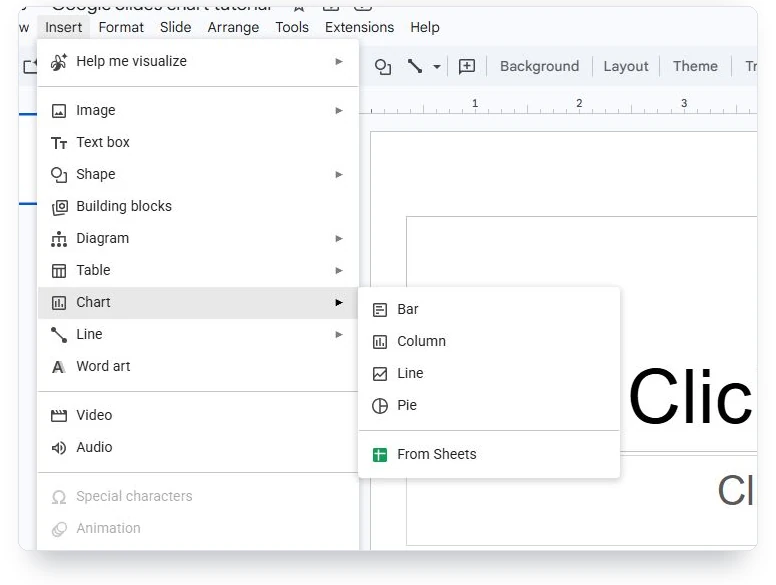
Google Slides creates a new chart with a linked Google Sheets spreadsheet where you edit its values. The chart you see on the slide is a copy; the spreadsheet is its source. On a computer, the Insert > Chart menu offers Bar, Column, Line and Pie, plus From Sheets for an existing chart.
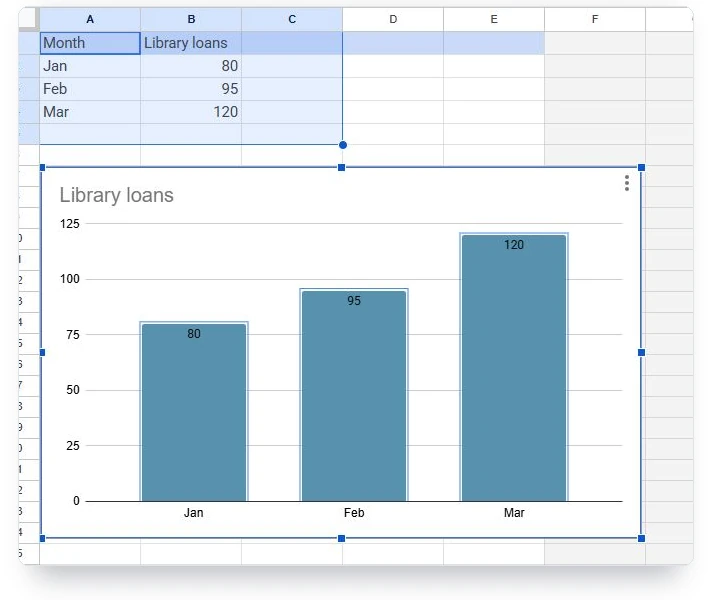
Choose a column chart for the example below. We’re using invented monthly library loans, with no claim about a real library’s performance. The spreadsheet and live examples use the same library dataset. The screenshots show the desktop steps, including Google’s initial sample data and the later March correction.
Start on the slide that should contain the chart. A blank layout gives you space to work. Slides creates sample data when you insert a new chart; replace those values before writing the slide’s takeaway. If you’re still choosing a form, our types of graphs guide compares the questions different charts answer.
- Open your presentation on a computer and select a slide.
- Choose Insert > Chart > Column.
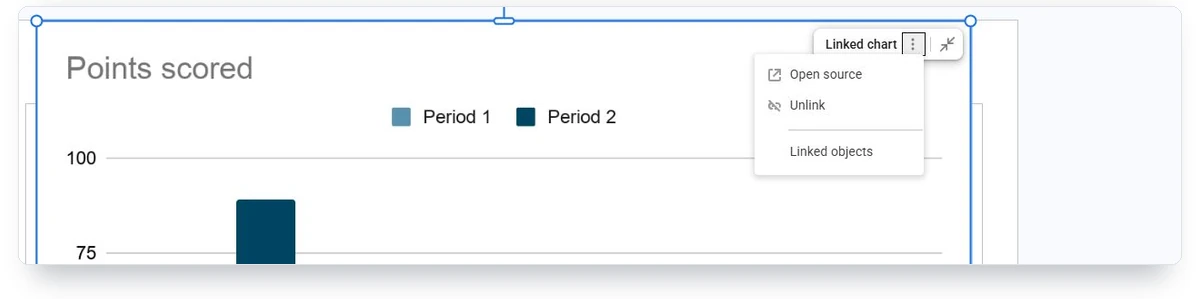
- Select the inserted chart and open Linked chart options.
- Choose Open source to reach its spreadsheet.
| Month | Library loans |
|---|---|
| Jan | 80 |
| Feb | 95 |
| Mar | 120 |
How do you edit the chart’s numbers and design?
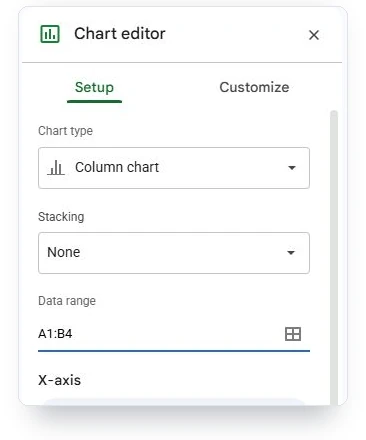
The data range is the rectangle of spreadsheet cells that supplies labels and values to a chart. In our example, A1:B4 includes the headings Month and Library loans, then Jan 80, Feb 95 and Mar 120. Keep the labels in the first column and numeric values in the second.
In Sheets, double-click the chart to open Chart editor. Setup controls its chart type and data range. Customize controls its appearance, including the chart title and data labels. We changed the sample title to Library loans and showed the values on the columns so the correction would be easy to inspect.
Keep the chart’s units visible. A label such as Revenue needs a currency, while Library loans names a count. If the chart reads only A1:B4, typing an April value in row 5 won’t add April to that range. Check Setup after extending the table. Our Google Sheets guide covers construction and repairs in more detail.
| Label | Library loans |
|---|---|
| Jan | 80 |
| Feb | 95 |
| Mar | 120 |
The example above is live on this page. Open it in the maker to change its values; the Google Slides screenshots show the separate desktop workflow.
How do you import a chart from Google Sheets?
Importing an existing Sheets chart with linking enabled keeps a connection to the spreadsheet that supplies its data. Use this route when you’ve already built the chart, rather than creating another spreadsheet through Slides. Create a chart in the spreadsheet before importing it into Slides. Select its cells, including the headings, then choose Insert > Chart in Sheets.
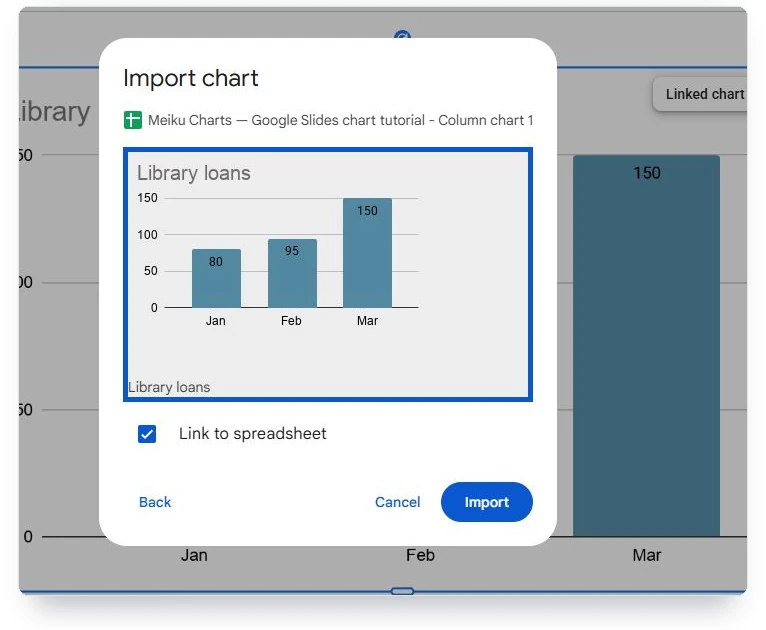
In our test, we imported the same Library loans chart onto a second, blank slide. The Import chart dialog showed a preview and a checked Link to spreadsheet option. Keeping that box checked gave the inserted chart link options. Clear the box to import a copy without a spreadsheet connection.
Make the linking decision before you import. A deck that will be revised needs an obvious route back to its source. A fixed result needs a clear date and a retained original. Choosing a copy without a link doesn’t repair incorrect numbers, and choosing a link doesn’t guarantee the displayed chart has been refreshed before a meeting.
- In Slides, choose Insert > Chart > From Sheets.
- Select the spreadsheet that contains your chart.
- Select the chart preview and decide whether to keep Link to spreadsheet checked.
- Choose Import, then place the chart on the slide.
How do you update a linked chart before presenting?
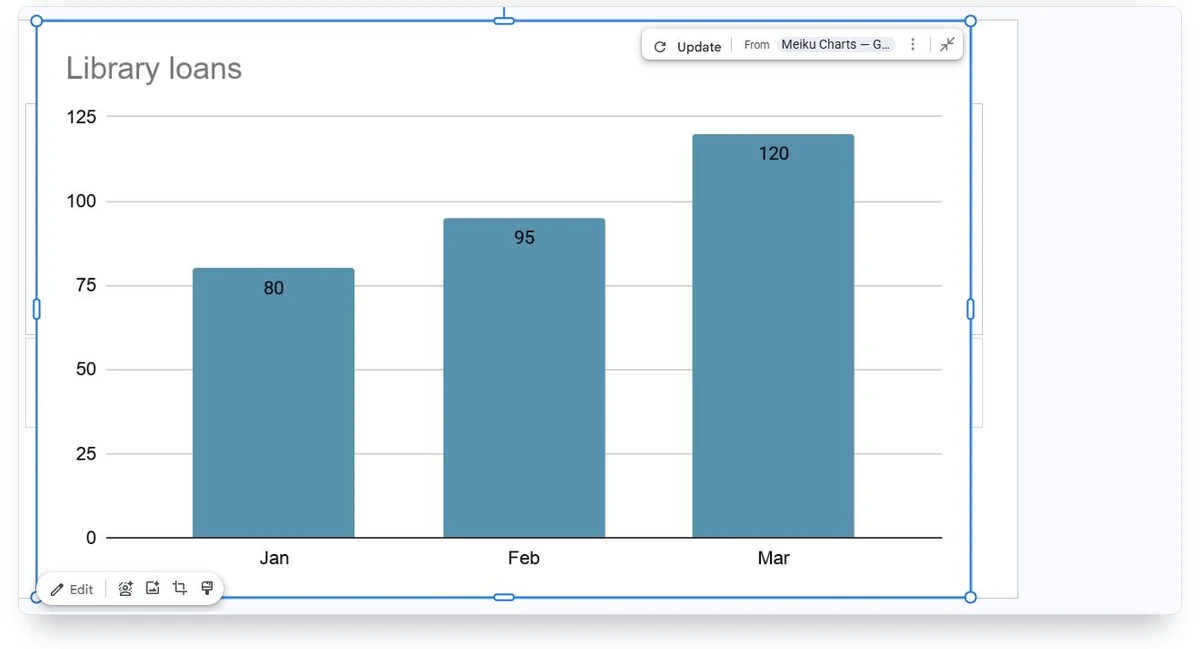
Changing numbers in Google Sheets does not refresh a linked chart in Slides until you choose Update. We tested this by correcting March from 120 to 150 in cell B4. The Sheets chart changed, but the slide still showed 120. After selecting the slide’s chart and pressing Update, March showed 150.
That extra step matters when you revise a deck shortly before presenting. Compare a changed value in the source with the displayed slide, rather than assuming the file’s saved status proves its charts are current. We also checked that the updated slide showed the source chart’s title and value labels.
For several linked objects, Google documents Tools > Linked objects > Update all. We tested the individual Update control; the Update all steps come from Google’s help. After refreshing, reread the slide’s takeaway. A corrected chart can make an unchanged sentence wrong even when the chart itself now shows the right values.

| Label | Original | Corrected |
|---|---|---|
| Jan | 80 | 80 |
| Feb | 95 | 95 |
| Mar | 120 | 150 |
A saved deck can still contain an outdated chart.
Try it with your data
New on Meiku Charts
Any currency and your own units in every maker
Find any of 156 currencies by name or code, or put your own unit before or after the number. The Design panel is also shorter.
See what changed →How do you center a graph without stretching it?
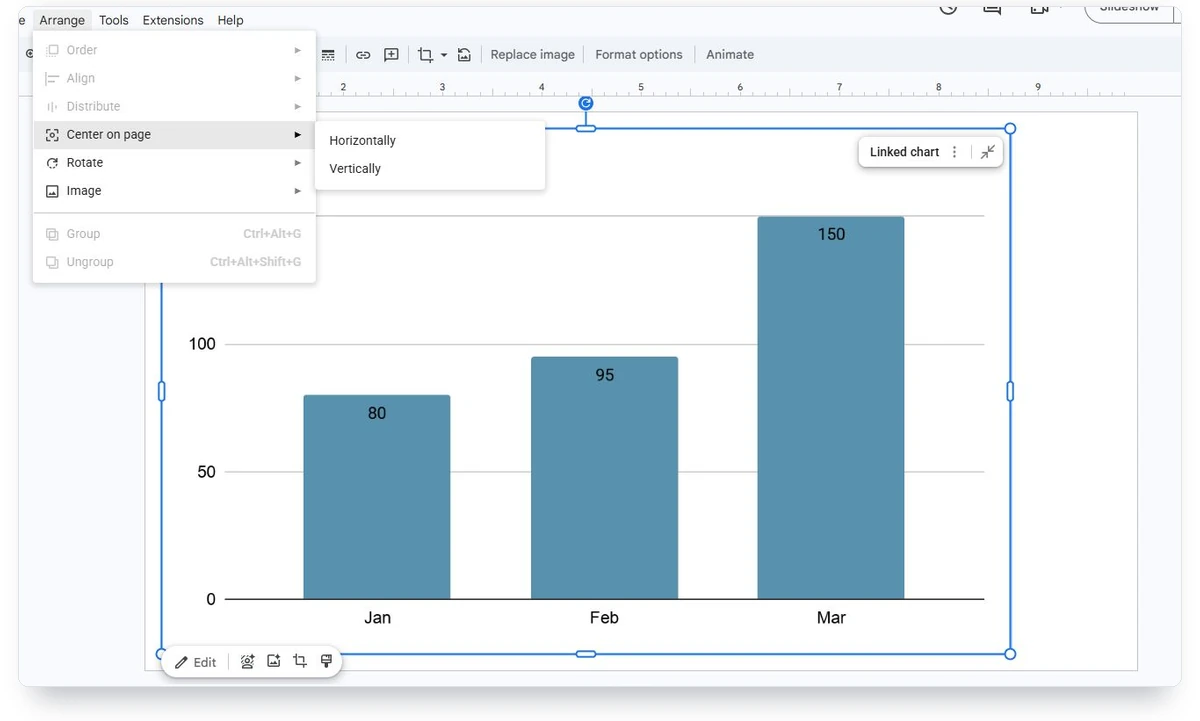
Center on page positions a selected chart horizontally or vertically, while Lock aspect ratio preserves its proportions. Select the chart and use Arrange > Center on page > Horizontally. Choose Vertically too if you want the middle of an otherwise empty slide. Centering the object doesn’t center each label within the chart.
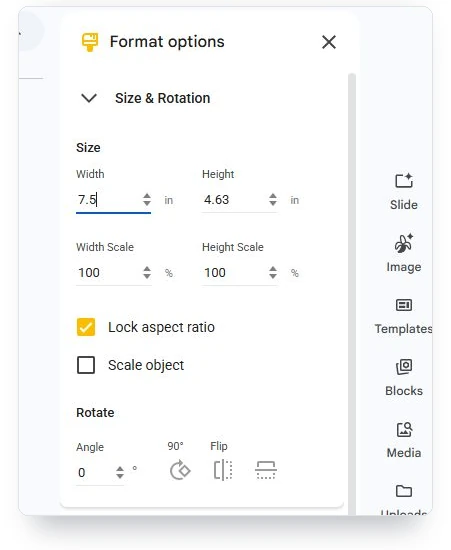
For exact sizing, open Format options. Our English interface has Size & Rotation and Position as separate sections. Enable Lock aspect ratio before changing a dimension. Google’s help uses the combined wording Size & Position, so look for the size controls if your interface has different section names.
Use Align when you have several selected objects whose edges should line up. With one chart selected, Center on page is the direct command. We reduced our imported chart with its proportions locked, then centered it in both directions. If your slide has a title above the chart, reserve that space instead of centering everything mechanically.
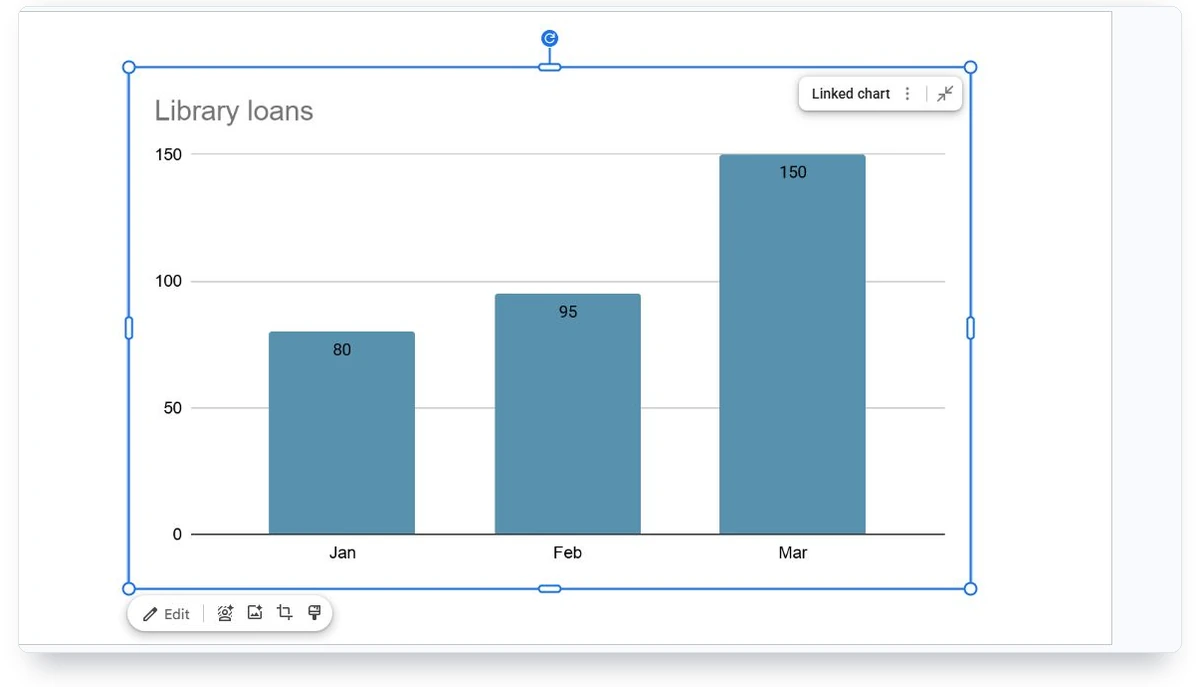
Preview at presentation size. Can someone read the month labels and tell what the chart counts? Long category names may fit a horizontal bar chart better. Shorten a label only when its meaning survives the edit.
Add an alt description that explains the result, not just “chart.” In our current interface, Format options > Alt Text accepts that description. For the corrected example, we entered: “Library loans rise from 80 in January to 95 in February and 150 in March. Synthetic teaching data.”
When should you insert a finished PNG instead?
A PNG stores a fixed picture of a chart and has no connection to its original spreadsheet. Use a finished image when the slide should preserve a chosen result or when you want to design the chart outside Sheets. Keep the editable source so you can produce a replacement when the numbers change.
For the same data, open our chart maker, paste the month and value rows, choose a column chart and export PNG. In Slides, use Insert > Image > Upload from computer to place that file. The mini-maker below lets you try the data before exporting.
The website’s hover behaviour and animated transitions don’t travel inside a PNG. Treat the file as a still image on the slide. If your audience needs the editable version, provide a separate link to the maker. Our Google Docs guide explains the same linked-versus-fixed decision for a document rather than a presentation.

| Route | Change the numbers | Refresh the slide | Use it for |
|---|---|---|---|
| Linked Sheets chart | Edit the chart's source spreadsheet | Choose Update after the source changes | A deck that is still being revised |
| PNG image | Edit the retained source and export again | Replace the image on the slide | A slide that should preserve one selected result |
Try it with your data
Why is your chart missing, blurry or hard to edit?
Start with the symptom you can see. Check the source file and the chart’s cell range before rebuilding anything. If you imported a picture, there won’t be a spreadsheet Update control to find. If the picture looks soft at presentation size, export a larger original instead of stretching the small file further.
| Symptom | Check | Next action |
|---|---|---|
| Old numbers remain | The source chart and the displayed copy | Select the linked chart and choose Update |
| Update is missing | Whether the object is linked or already current | Inspect its link options; reimport with linking enabled if needed |
| New rows are absent | The source chart's Setup data range | Extend the range to include the added rows, then refresh Slides |
| Chart is blurry | The original image size and its display size | Export a larger PNG; keep its proportions and replace the small file |
| Cannot edit chart values | Whether you selected a chart object or an image | Use Open source for a linked chart; return to the retained source for a PNG |
| Imported chart is unavailable | Whether the chosen spreadsheet contains a chart | Create the chart in Sheets, then use From Sheets again |
Google says presentation viewers can see a linked chart even without access to its source spreadsheet. Review what the chart displays before sharing the deck. That doesn’t give viewers permission to edit the source or expose every cell in it.
Can you make and animate these charts on a phone?
Google’s Android instructions say to use a computer to add linked charts to a Slides presentation. Those instructions concern adding linked charts; they don’t rule out viewing an existing chart on a phone. Use a computer for the creation and import steps shown here.
Animation needs a separate decision. Google Slides supports effects for images, text and other slide objects. Revealing a whole chart with an object animation is different from changing its values or watching the individual marks move between datasets. Neither linking to Sheets nor inserting PNG gives the picture the interactive controls of this page’s live charts.
If the presentation needs an interactive data demonstration, keep a separate browser view or share an appropriate chart link. Our animated chart guide explains those options. Check the version and format you’ll actually present before adding effects that distract from the point you’re making.
Comments